Tuesday, December 11, 2012

Create WebLogic Domain For OIM 11.1.1.5.0

 Prerequisites
  1. JRockit Installation
  2. Oracle Database 11g R2 Installation
  3. WebLogic Server 10.3.5 Installation
  4. IDM 11.1.1.5.0 Installation
  5. SOA 11.1.1.5.0 Installation
  6. Creating OIM Schema
Create WebLogic Domain for OIM
  • Navigate to "<OIM_HOME>/common/bin"  directory.
  • E.g. /home/oracle/Oracle/Middleware/Oracle_IDM1/common/bin
  • Execute the "config.sh" script.
The screenshots given below will walk you through the process.

Step 1: Select "Create a new WebLogic domain".


Step 2:
                            Select Oracle Identity Manager – 11.1.1.3.0 [Oracle_IDM1]
                            Selecting that will automatically check:
                            -Oracle SOA Suite – 11.1.1.0 [Oracle_SOA1]
                            -Oracle Enterprise Manager – 11.1.1.1.0 [oracle_common]
                            -Oracle WSM Policy Manager – 11.1.1.1.0 [oracle_common]
                            -Oracle JRF – 11.1.1.1.0 [oracle_common


Step 3: Specify domain name and location


Step 4: Configure Administrator credentials


Step 5: Specify JDK


Step 6: Configure JDBC Component Schema


Step 7: Test JDBC Component Schema


Step 8: Select Optional Configuration


Step 9: Configuration Summary


Step 10: Creating Domain


Creating OIM 11.1.1.5.0 Schema

Prerequisites
  1. Environment setup
  2. Oracle Database 11g R2 Installation
OIM Schema Creation
Repository Creation Utility (11.1.1.5.0) Download
File: ofm_rcu_linux_11.1.1.5.0_disk1_1of1.zip
There is only a 32-bit version of the Repository Creation Utility file.

Unzip the file. A "rcuHome" directory should be created for you. Navigate into "rcuHome/bin" and execute the rcu script.

If you get the following error below do the following:
  • Modify the rcu script. Give yourself write permissions for this file.
  • Change the "JRE_DIR" variable to the path of your jre.
  • E.g. JRE_DIR=/home/oracle/java/jrockit64/jre
  • Execute rcu
Failed to initialize logger with location :/home/oracle/Desktop/Oracle_64Bits/
OIM111150/rcu/rcuHome/rcu/log/logdir.2012-12-11_21-22/rcu.log
Initializing logger using the following location :/tmp/logdir.2012-12-11_21-22/rcu.log
Exception in thread "main" java.lang.UnsatisfiedLinkError: /home/oracle/Desktop/Oracl
e_64Bits/OIM111150/rcu/rcuHome/jdk/jre/lib/i386/xawt/libmawt.so: libXext.so.6:
cannot open shared object file: No such file or directory
 at java.lang.ClassLoader$NativeLibrary.load(Native Method)
 at java.lang.ClassLoader.loadLibrary0(ClassLoader.java:1806)
 at java.lang.ClassLoader.loadLibrary(ClassLoader.java:1702)
 at java.lang.Runtime.load0(Runtime.java:770)
 at java.lang.System.load(System.java:1003)
 at java.lang.ClassLoader$NativeLibrary.load(Native Method)
 at java.lang.ClassLoader.loadLibrary0(ClassLoader.java:1806)
 at java.lang.ClassLoader.loadLibrary(ClassLoader.java:1723)
 at java.lang.Runtime.loadLibrary0(Runtime.java:823)
 at java.lang.System.loadLibrary(System.java:1028)
 at sun.security.action.LoadLibraryAction.run(LoadLibraryAction.java:50)
 at java.security.AccessController.doPrivileged(Native Method)
 at java.awt.Toolkit.loadLibraries(Toolkit.java:1605)
 at java.awt.Toolkit.<clinit>(Toolkit.java:1627)
 at com.jgoodies.looks.LookUtils.isLowResolution(LookUtils.java:484)
 at com.jgoodies.looks.LookUtils.<clinit>(LookUtils.java:249)
 at com.jgoodies.looks.plastic.PlasticLookAndFeel.<clinit>(PlasticLookAndFeel.java:135)
 at oracle.sysman.assistants.rcu.ui.InteractiveRCUModel.<init>(InteractiveRCUModel.java:117)
 at oracle.sysman.assistants.rcu.Rcu.execute(Rcu.java:292)
 at oracle.sysman.assistants.rcu.Rcu.main(Rcu.java:344)

The screenshots given below will walk you through the schema creation process.

Step 1: Welcome Page


Step 2: Create a new schemas.


Step 3: Specify database connection information.


Step 3b: Prerequisites checks


Step 4: 
Specfiy the schema prefix you are going to use. Check Oracle Identity Manager under Identity Manager. By checking this the following are automatically checked for you:

AS Common Schemas
-Metadata Services
-SOA and BPM Infrastructure
-SOA Infrastructure
-User Messaging Service


Step 4b: Click Ignore. This should not affect the schema creation process.


Step 4c

Step 5: Specify Schema Password


Step 6

Step 6a


Step 6b


Step 7: Create Schema


Step 8: Summary

SOA 11.1.1.5.0 Installation on OEL 6.3 (64-bit)

Installation Prerequisites
  1. Environment Setup
  2. Java Installation
  3. WebLogic 10.3.5.0 Server Installation
SOA Installation
Oracle SOA Suite 11.1.1.5.0 Download
Files:
  • ofm_soa_generic_11.1.1.5.0_disk1_1of2.zip
  • ofm_soa_generic_11.1.1.5.0_disk1_2of2.zip

Unzip the files. Five "Disk" directory should have been created for you. Move those directories into a directory called "SOA".

Modify the "refhost.xml" located in the "SOA/Disk1/stage/prereq/linux64" directory.
Add the following lines to the "refhost.xml" below the "<CERTIFIED_SYSTEMS>" tag:

<OPERATING_SYSTEM>
<VERSION VALUE="6.3"/>
<ARCHITECTURE VALUE="x86"/>
<NAME VALUE="Linux"/>
<VENDOR VALUE="redhat"/> 
<GLIBC ATLEAST="2.5-12"> </GLIBC>
<PACKAGES>
<PACKAGE NAME="binutils" VERSION="2.17.50.0.6" /> 
<PACKAGE NAME="compat-libstdc++-33" VERSION="3.2.3" ARCHITECTURE="x86_64" /> 
<PACKAGE NAME="compat-libstdc++-33" VERSION="3.2.3" ARCHITECTURE="i686" /> 
<PACKAGE NAME="elfutils-libelf" VERSION="0.125" /> 
<PACKAGE NAME="elfutils-libelf-devel" VERSION="0.125" />
<PACKAGE NAME="gcc" VERSION="4.1.1" /> 
<PACKAGE NAME="gcc-c++" VERSION="4.1.1" />
<PACKAGE NAME="glibc" VERSION="2.5-12" ARCHITECTURE="x86_64" /> 
<PACKAGE NAME="glibc" VERSION="2.5-12" ARCHITECTURE="i686" /> 
<PACKAGE NAME="glibc-common" VERSION="2.5" /> 
<PACKAGE NAME="glibc-devel" VERSION="2.5" ARCHITECTURE="x86_64" /> 
<PACKAGE NAME="glibc-devel" VERSION="2.5-12" ARCHITECTURE="i686" /> 
<PACKAGE NAME="libaio" VERSION="0.3.106" ARCHITECTURE="x86_64" /> 
<PACKAGE NAME="libaio" VERSION="0.3.106" ARCHITECTURE="i686" /> 
<PACKAGE NAME="libaio-devel" VERSION="0.3.106" /> 
<PACKAGE NAME="libgcc" VERSION="4.1.1" ARCHITECTURE="x86_64" /> 
<PACKAGE NAME="libgcc" VERSION="4.1.1" ARCHITECTURE="i686" /> 
<PACKAGE NAME="libstdc++" VERSION="4.1.1" ARCHITECTURE="x86_64" /> 
<PACKAGE NAME="libstdc++" VERSION="4.1.1" ARCHITECTURE="i686" /> 
<PACKAGE NAME="libstdc++-devel" VERSION="4.1.1" /> 
<PACKAGE NAME="make" VERSION="3.81" /> 
<PACKAGE NAME="sysstat" VERSION="7.0.0" /> 
</PACKAGES> 
<KERNEL> 
<!-- 
<PROPERTY NAME="semmsl" NAME2="semmsl2" VALUE="250" />
<PROPERTY NAME="semmns" VALUE="32000" /> 
<PROPERTY NAME="semopm" VALUE="100" /> 
<PROPERTY NAME="semmni" VALUE="128" /> 
<PROPERTY NAME="shmmax" VALUE="536870912" /> 
<PROPERTY NAME="shmmni" VALUE="4096" /> 
<PROPERTY NAME="shmall" VALUE="2097152" /> 
<PROPERTY NAME="file-max" VALUE="65536" /> 
<PROPERTY NAME="ip_local_port_range" ATLEAST="1024" ATMOST="65000" /> 
<PROPERTY NAME="rmem_default" VALUE="4194304" /> 
<PROPERTY NAME="rmem_max" VALUE="4194304" /> 
<PROPERTY NAME="wmem_default" VALUE="262144" /> 
<PROPERTY NAME="wmem_max" VALUE="262144" /> 
--> 
<PROPERTY NAME="VERSION" VALUE="2.6.18"/> 
<PROPERTY NAME="hardnofiles" VALUE="4096"/> 
<PROPERTY NAME="softnofiles" VALUE="4096"/> 
</KERNEL> 
</OPERATING_SYSTEM>

Execute runInstaller located in the "Disk1" directory.
Java Home: /home/oracle/java/jrockit64

The screenshots given below will walk you through the installation process.

Step 1


Step 2


Step 3


Step 4
Oracle Middleware Home: /home/oracle/Oracle/Middleware


Step 5


Step 6


Step 7


Step 8


SOA Installation Response File


SOA Installation Configuration File

Monday, December 10, 2012

Oracle IDM 11.1.1.5.0 Installation on OEL 6.3 (64 bit)

Installation Prerequisites
  1. Environment setup
  2. Java Installation
  3. WebLogic Server Installation
IDM Installation
Oracle Identity and Access Management (11.1.1.5.0) download
Type: Generic
File: ofm_iam_generic_11.1.1.5.0_disk1_1of1.zip

Unzip the file. Four "Disk" directories should have been created. Move those directories in one directory called IDM.

Modify the refhost.xml located in "IDM/Disk1/prereq/linux64" directory.
Below the "<CERTIFIED_SYSTEMS>" tag insert the following lines into the file:
<OPERATING_SYSTEM>
<VERSION VALUE="6.3"/> 
<ARCHITECTURE VALUE="x86"/>
<NAME VALUE="Linux"/>
<VENDOR VALUE="redhat"/>
<GLIBC ATLEAST="2.5-12">
</GLIBC>
<PACKAGES>
<PACKAGE NAME="binutils" VERSION="2.17.50.0.6" />
<PACKAGE NAME="compat-libstdc++-33" VERSION="3.2.3" ARCHITECTURE="x86_64" />
<PACKAGE NAME="compat-libstdc++-33" VERSION="3.2.3" ARCHITECTURE="i686" />
<PACKAGE NAME="elfutils-libelf" VERSION="0.125" />
<PACKAGE NAME="elfutils-libelf-devel" VERSION="0.125" />
<PACKAGE NAME="gcc" VERSION="4.1.1" />
<PACKAGE NAME="gcc-c++" VERSION="4.1.1" />
<PACKAGE NAME="glibc" VERSION="2.5-12" ARCHITECTURE="x86_64" />
<PACKAGE NAME="glibc" VERSION="2.5-12" ARCHITECTURE="i686" />
<PACKAGE NAME="glibc-common" VERSION="2.5" />
<PACKAGE NAME="glibc-devel" VERSION="2.5" ARCHITECTURE="x86_64" />
<PACKAGE NAME="glibc-devel" VERSION="2.5-12" ARCHITECTURE="i686" />
<PACKAGE NAME="libaio" VERSION="0.3.106" ARCHITECTURE="x86_64" />
<PACKAGE NAME="libaio" VERSION="0.3.106" ARCHITECTURE="i686" />
<PACKAGE NAME="libaio-devel" VERSION="0.3.106" />
<PACKAGE NAME="libgcc" VERSION="4.1.1" ARCHITECTURE="x86_64" />
<PACKAGE NAME="libgcc" VERSION="4.1.1" ARCHITECTURE="i686" />
<PACKAGE NAME="libstdc++" VERSION="4.1.1" ARCHITECTURE="x86_64" />
<PACKAGE NAME="libstdc++" VERSION="4.1.1" ARCHITECTURE="i686" />
<PACKAGE NAME="libstdc++-devel" VERSION="4.1.1" />
<PACKAGE NAME="make" VERSION="3.81" />
<PACKAGE NAME="sysstat" VERSION="7.0.0" />
</PACKAGES>
<KERNEL>
<!--
<PROPERTY NAME="semmsl" NAME2="semmsl2" VALUE="250" />
<PROPERTY NAME="semmns" VALUE="32000" />
<PROPERTY NAME="semopm" VALUE="100" />
<PROPERTY NAME="semmni" VALUE="128" />
<PROPERTY NAME="shmmax" VALUE="536870912" />
<PROPERTY NAME="shmmni" VALUE="4096" />
<PROPERTY NAME="shmall" VALUE="2097152" />
<PROPERTY NAME="file-max" VALUE="65536" />
<PROPERTY NAME="ip_local_port_range" ATLEAST="1024" ATMOST="65000" />
<PROPERTY NAME="rmem_default" VALUE="4194304" />
<PROPERTY NAME="rmem_max" VALUE="4194304" />
<PROPERTY NAME="wmem_default" VALUE="262144" />
<PROPERTY NAME="wmem_max" VALUE="262144" />
-->
<PROPERTY NAME="VERSION" VALUE="2.6.18"/>
<PROPERTY NAME="hardnofiles" VALUE="4096"/>
<PROPERTY NAME="softnofiles" VALUE="4096"/>
</KERNEL>
</OPERATING_SYSTEM>

Install the required packages:
yum install glibc-devel.i686
Execute the "runInstaller" script found in "Disk1" directory. You will be prompted to specify Java home (E.g. /home/oracle/java/jrockit64).

The screenshots given below will walk you through the installation process.

Step 1


Step 2


Step 3


Step 4
Oracle Middleware Home: /home/oracle/Oracle/Middleware


Step 5
Save Response File


Step 6


Step 7
Save Installation Configuration


IDM Installation Response File


IDM Installation Configuration File

Weblogic 10.3.5.0 Installation on OEL 6.3 (64-bit)

Installation Prerequisites:
  1. Environment Setup
  2. Java Installation
WebLogic Server Installation
WebLogic 10.3.5.0 Download Link
Oracle WebLogic Server 11gR1 (10.3.5.0) + Coherence Package Installer: Generic
File: wls1035_generic.jar

Execute the weblogic jar file.
java -jar wls1035_generic.jar

The screenshots given below will walk you through the installation process.

This is the welcome page of the installation wizard. Click next.
Step 1


Specify the Middleware directory to install weblogic in and then click next.
Step 2
Middleware Home Directory: /home/oracle/Oracle/Middleware


This is not required to register for security updates. Opt out of the security updates and then click next.
Step 3: Uncheck “I wish to receive …”


Bypass the security updates.
Step 3.1: Click yes.


You get this warning when you do not enter your email address in the security updates page. It is okay to ignore this message.
Step 3.2: Click yes.


This message does not affect installation. Select "I wish to remain uninformed of security issues in my configuration" and then click next.
Step 3.3: Check “I wish to remain . . .” and click continue


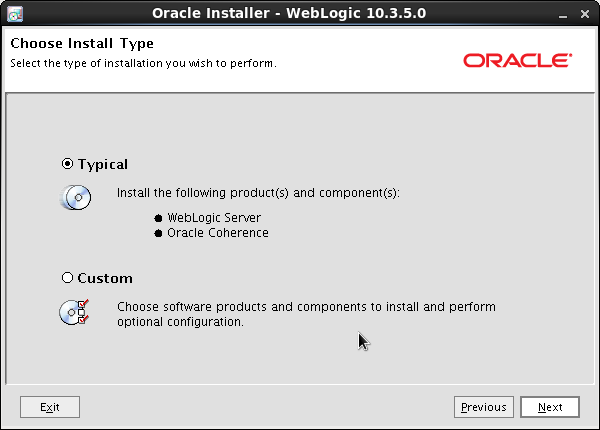
Select typical install type.
Step 4: Select Typical


Specify the location of the JRockit directory.
Step 5


Leave the fields as the default values,
Step 6


This shows the following products to be installed.
Step 7


The installation should be quick.
Step 8


Do not run quick start. Click finish.
Step 9